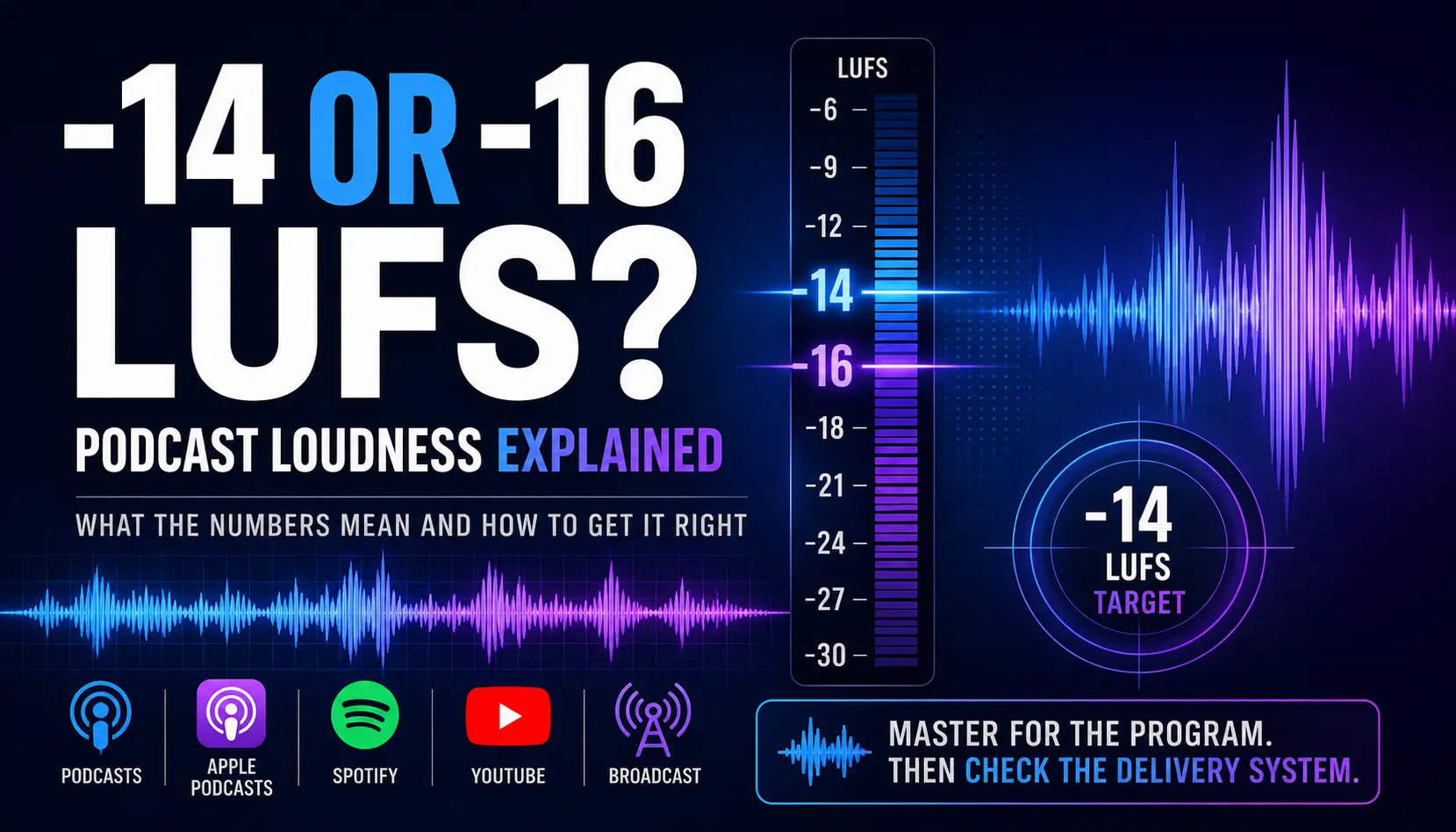
How loud should your podcast actually be?
For the spoken-word podcasts I produce, my practical target is usually around -14 LUFS Integrated, with enough true-peak headroom to keep the file clean through encoding and playback.
That does not mean -14 LUFS is a universal podcast standard.
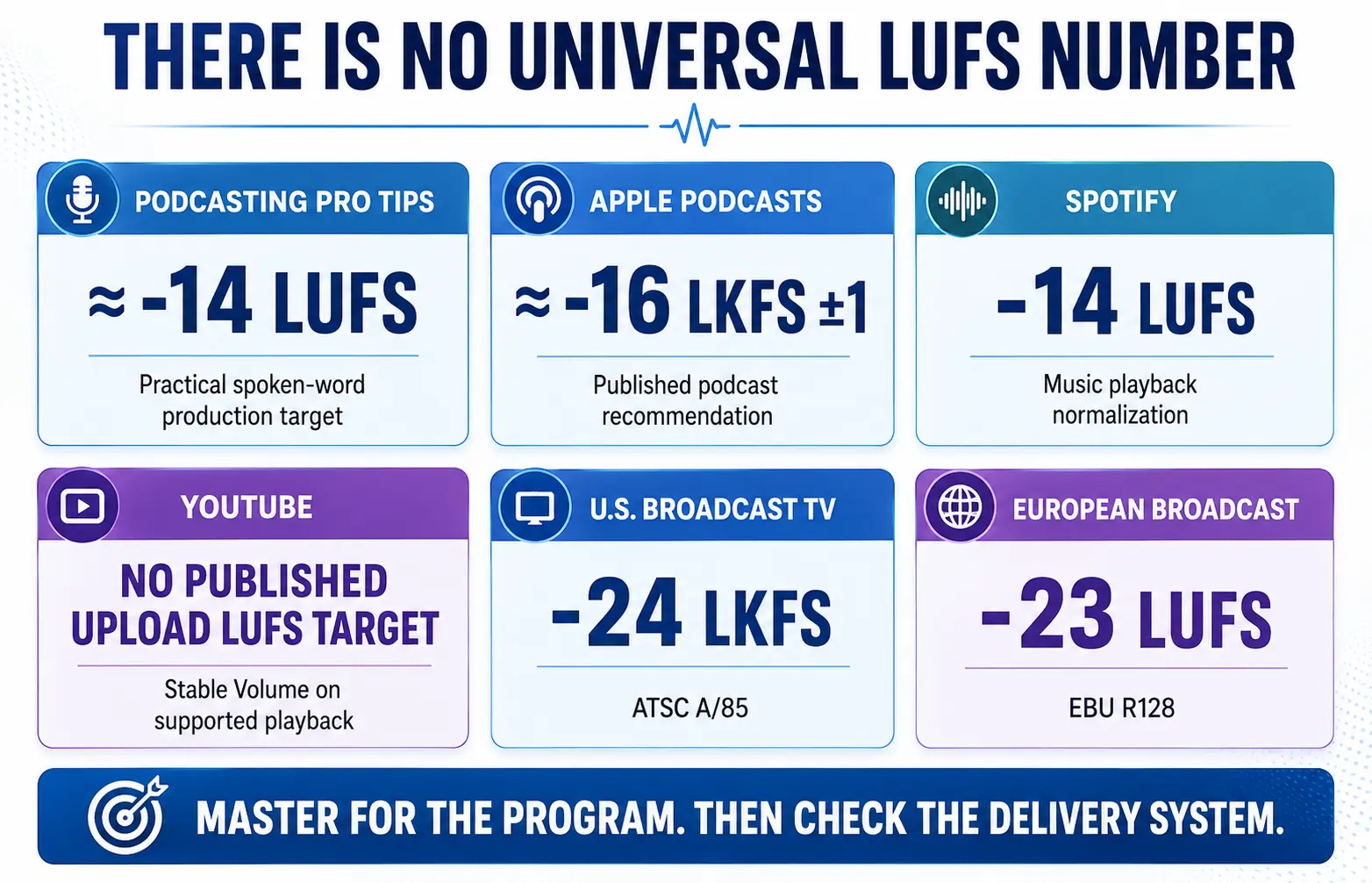
Apple publishes a recommendation around -16 LKFS for podcast audio. Spotify publishes -14 LUFS as part of its music playback-normalization system. YouTube does not publish a creator upload specification telling you to master every video to -14 LUFS. U.S. broadcast television lives down around -24 LKFS, while European broadcast commonly uses -23 LUFS.
Different medium. Different job.
I learned the same lesson in music mastering: master for the material and the way the finished program should sound first. Then make sure the file works inside the delivery system.
For a contemporary spoken-word podcast, I don’t want a show that makes the listener reach for the volume control because it’s too quiet. I also don’t want a voice flattened into an exhausting wall of sound just because somebody wanted a bigger LUFS number.
The number is a target.
The sound still makes the decision.
What Does LUFS Measure?
LUFS is a way of measuring program loudness over time rather than simply looking at the highest instantaneous peak.
That distinction matters because two sounds can reach the same peak level while feeling very different in loudness.
A sharp transient might produce a high peak for a fraction of a second.
A compressed spoken voice can sit at a lower peak while remaining consistently loud for minutes at a time.
Modern loudness standards use ITU-R BS.1770-based measurement to evaluate loudness, and EBU R128 defines Program Loudness as the integrated loudness measured over the duration of a program. EBU also notes that LUFS and LKFS are equivalent units; the organizations simply use different terminology.
For podcast mastering, the number I normally care about first is:
Integrated LUFS
That tells me how the finished program measures overall.
Your peak meter is still important. It just answers a different question.
If sample rate, bit depth, peak level, and loudness are starting to sound like four versions of the same thing, my guide to podcast sample rate and bit depth separates those decisions.
LUFS and True Peak Are Not the Same Thing
LUFS tells you about overall loudness.
True peak helps you see how close the reconstructed waveform may get to the digital ceiling.
You need both.
Apple currently recommends that podcast audio remain around -16 dB LKFS ±1 dB and that true peak not exceed -1 dBFS. Apple says that conditioning should happen before encoding because lossy audio compression can create problems when the signal has insufficient peak headroom.
Spotify’s current music-mastering guidance also recommends a true peak below -1 dBTP when the master is around -14 LUFS, and even more headroom when material is mastered louder than -14.
So even though my podcast target is often around -14 LUFS Integrated, I’m not trying to park every peak at 0 dBFS.
Loud enough is useful.
Clipping isn’t.
Is -16 LUFS the Podcast Standard?
No. It is better described as an important published recommendation than as one universal podcast law.
Apple’s podcast documentation currently recommends approximately:
-16 LKFS ±1 dB
True peak ≤ -1 dBFS
That’s worth knowing.
But that does not mean every podcast distributed everywhere must be mastered to exactly -16.
It also does not mean Apple Podcasts automatically creates a new -16 LUFS master every time somebody submits a louder file.
Apple tells producers how it recommends preparing the audio. Its documentation does not describe a universal Apple Podcasts process that simply takes a -14 LUFS RSS file and turns it into a new -16 LUFS version.
That’s an important difference.
A recommended production level and a playback normalization system are not the same thing.
So Why Do I Normally Aim Around -14 LUFS?
Because I master for the finished spoken-word program rather than blindly matching the lowest published number in the distribution chain.
For the kind of polished business, educational, and video podcasts I work with, around -14 LUFS Integrated gives me a useful contemporary listening level.
The voice feels present.
The listener doesn’t need to compensate for an obviously quiet master.
And I can usually get there without turning normal speech into a brick.
That last part matters.
I would rather deliver a clean -14.5 LUFS master that sounds good than force a difficult recording to exactly -14.0 by squeezing another half-decibel out of the limiter.
Likewise, if a very natural, dynamic production lands at -15 and sounds right, I wouldn’t wreck it just to make the meter prettier.
This is why I call -14 a house production target, not a universal platform standard.
What Does Spotify Actually Say About -14 LUFS?
Spotify really does publish -14 LUFS—but the context matters.
Spotify for Artists says Spotify uses loudness normalization to balance soft and loud songs and adjusts tracks toward -14 dB LUFS during supported playback. Spotify also says that the adjustment happens during playback rather than modifying the uploaded master itself.
For Premium listeners, Spotify currently offers three normalization levels:
- Loud: -11 LUFS
- Normal: -14 LUFS
- Quiet: -19 LUFS
Spotify also says its web player and some third-party devices do not use its loudness normalization.
That’s why I would not write:
“Spotify requires podcasts to be -14 LUFS.”
It doesn’t.
The published page is music guidance.
But -14 still gives us useful context. It tells us that a -14 LUFS master lives comfortably inside a very common modern streaming-loudness environment.
That’s different from claiming Spotify invented a podcast standard.
What About YouTube?
YouTube does not currently publish an upload specification telling creators that their videos must be mastered to a specific LUFS target.
Its official recommended upload settings specify things such as audio codec, channels, and a 48 kHz sample rate, but not a mandatory LUFS value.
YouTube does, however, use Stable Volume on many videos.
Google describes Stable Volume as a feature that continually adjusts volume to reduce the difference between quiet and loud portions of a video. It is on by default for supported videos, although it is not available everywhere and is disabled for YouTube Music and official music videos.
That tells me something more useful than pretending YouTube gave us a magic mastering number:
YouTube cares about comfortable, consistent playback.
So do I.
A video podcast should not make someone turn the television up for the conversation and then dive for the remote when the intro music hits.
That is a mixing problem before it is a platform problem.
Why Broadcast Television Is So Much Quieter
If you’ve worked in television, you may be looking at -14 LUFS and thinking:
“That would never pass broadcast.”
Correct.
U.S. digital television operates in a very different loudness environment.
The current ATSC A/85:2026 guidance recommends -24 LKFS for content delivered or exchanged without loudness metadata, with a maximum true peak of -2 dBTP. For long-form television containing dialogue, ATSC emphasizes dialogue loudness as the key anchor rather than simply measuring the whole mix the same way we normally measure a podcast master.
European broadcast commonly follows EBU R128, which specifies:
-23 LUFS Program Loudness
Maximum true peak -1 dBTP during linear production
Those are not podcast standards.
Broadcast television uses calibrated monitoring environments, metadata, loudness management, dynamic-range controls, and receiver behavior designed around television distribution. ATSC’s current documentation specifically discusses dialnorm metadata as a way for receivers to adjust loudness without permanently destroying the content’s original dynamic range.
So I would not take the -24 television number and decide your podcast should also live there.
Nor would I take Spotify’s -14 music normalization number and tell a network television mixer to deliver a drama at -14.
You master for the medium.
A Useful Loudness Comparison
Here is the cleaner way to look at the numbers:
| Environment | Published or Practical Reference | What It Means |
|---|---|---|
| Podcasting Pro Tips production target | ≈ -14 LUFS Integrated | House target for polished contemporary spoken-word production |
| Apple Podcasts recommendation | ≈ -16 LKFS ±1 | Apple creator-side podcast audio recommendation |
| Spotify | -14 LUFS Normal | Published music playback-normalization reference, not a podcast requirement |
| YouTube | No published creator LUFS upload target | Stable Volume may reduce loud/quiet variation on supported playback |
| U.S. broadcast TV | -24 LKFS | ATSC content-exchange/delivery target without metadata |
| European broadcast | -23 LUFS | EBU R128 broadcast target |
Apple, Spotify, YouTube, ATSC, and EBU are solving different problems.
That’s why I don’t think the right question is:
“Which platform’s number should I obey?”
A better question is:
“What level makes this program sound right, stay consistent, and move safely through the platforms where it will be distributed?”
A Podcast Can Be Too Quiet
A technically clean master can still create a lousy listening experience if the listener constantly has to turn it up.
This is one reason I don’t automatically choose -16 just because Apple publishes it.
If your audience moves from another piece of contemporary spoken-word content into your show and suddenly has to add several clicks of volume, they experience that as a production difference.
They do not care what your loudness report says.
They hear:
“This one’s quieter.”
That may be perfectly acceptable for a deliberately more dynamic program.
But if the show is supposed to sound polished, direct, and consistent beside other modern digital content, I want the listening level to make sense in that environment.
A Podcast Can Also Be Too Loud
The opposite problem is just as real.
You can hit -14 LUFS and still make a terrible master.
If you have to slam a badly recorded voice through aggressive compression and limiting just to hit the target, the number isn’t helping you.
Two programs can both read -14 LUFS Integrated and sound completely different.
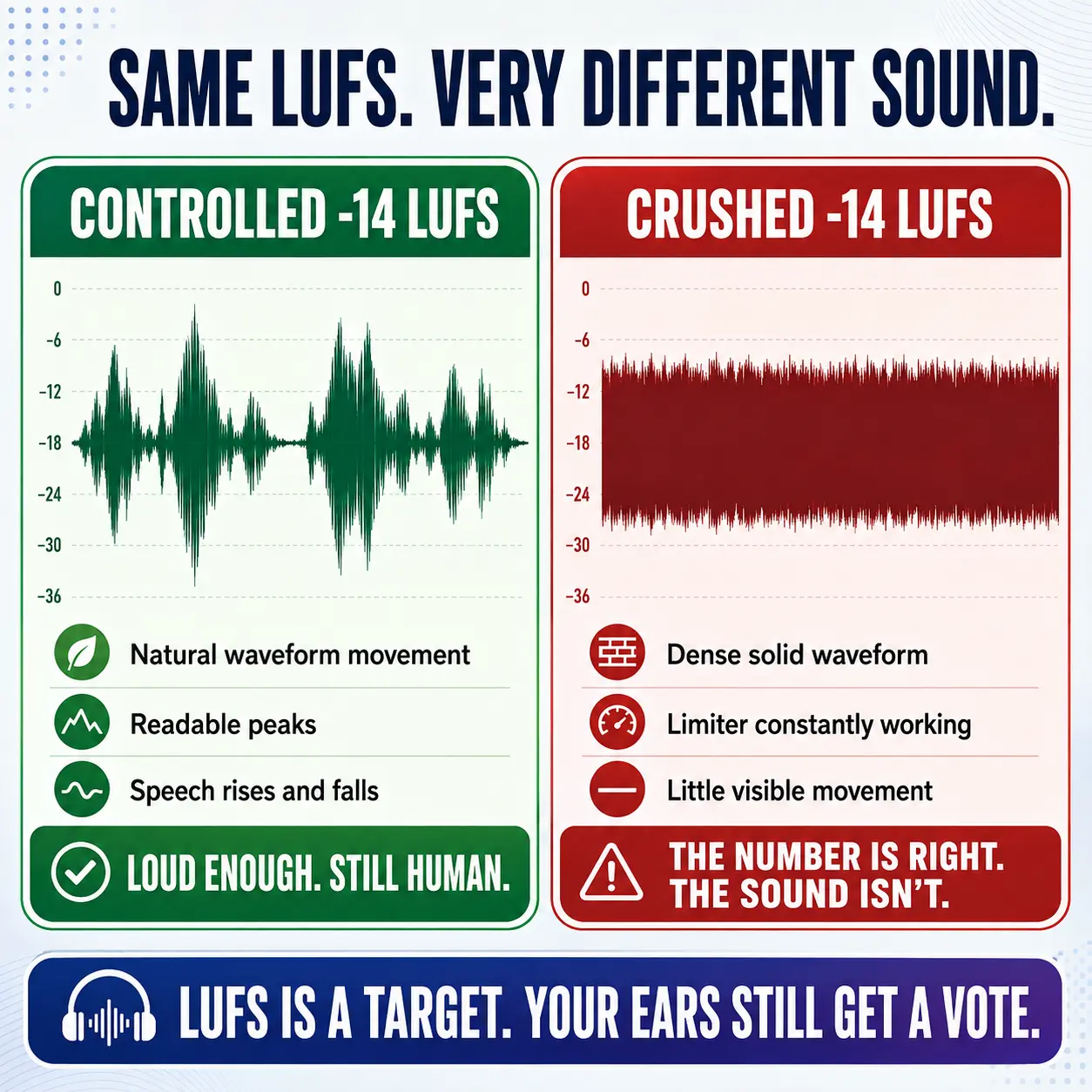
One might have natural sentence movement, clean transient detail, and reasonable space between loud and soft moments.
The other can feel pinned to the listener’s forehead for 45 minutes.
That’s why loudness is not just the integrated number.
The EBU loudness framework also includes Loudness Range, Momentary Loudness, Short-Term Loudness, and True Peak because different measurements describe different parts of the listening experience.
You don’t need to turn your podcast into a broadcast lab.
But you do need to listen.
Riverside Is a Great Example of Why You Measure the Finished Export
Riverside’s current documentation is more complicated than simply saying “Riverside exports at -23 LUFS.”
Its optional Normalize Audio Levels function operates on individual speaker tracks and Riverside says that specific process normalizes speakers to the EBU R128 level of -23 LUFS before the tracks are mixed.
But Riverside separately says that every final editor export goes through EBU R128 normalization after the tracks are mixed, and that this final normalization cannot be disabled. Riverside does not state a final target LUFS on that page.
That difference matters.
I recently ran one of my own finished Riverside exports through Youlean Loudness Meter.
It measured:
-14.1 LUFS Integrated
-1.7 dBTP True Peak
That does not prove every Riverside export will land at exactly -14 LUFS.
It does prove something more useful:
Don’t assume you know the loudness of a finished file because you read the number attached to one processing stage. Measure the file you’re actually going to publish.
Riverside itself says its final exports are automatically normalized to meet what it calls industry volume standards.
For me, the meter closes the loop.
Should You Turn a Clean -14 LUFS Podcast Down to -16 for Apple?
I wouldn’t do that automatically.
If I’ve got a clean spoken-word master around -14 LUFS, the dynamics feel right, the true peak is safe, and it sounds appropriate against comparable material, I’m not going to turn the entire program down 2 dB simply to make the number match Apple’s recommendation.
Apple’s -16 guidance still matters.
I want to know it.
I want to understand why it exists.
But I’m not treating it as a creative commandment.
The goal is not to win a compliance contest between podcast apps.
The goal is to create one strong master that sounds right and travels well.
My Practical Spoken-Word Podcast Loudness Target
For the type of podcast production I normally do, this is the starting point:
Integrated loudness: around -14 LUFS
True peak: keep it safely below the digital ceiling; -1 dBTP or lower is a useful reference, and I am perfectly comfortable with more headroom such as -1.5 or -2 dBTP.
Dynamics: keep the voice controlled without flattening the life out of it.
Consistency: pay attention to episode-to-episode level. A listener notices when Episode 42 suddenly feels much quieter than Episode 41.
Final judgment: listen.
This is a production target.
Not a law.
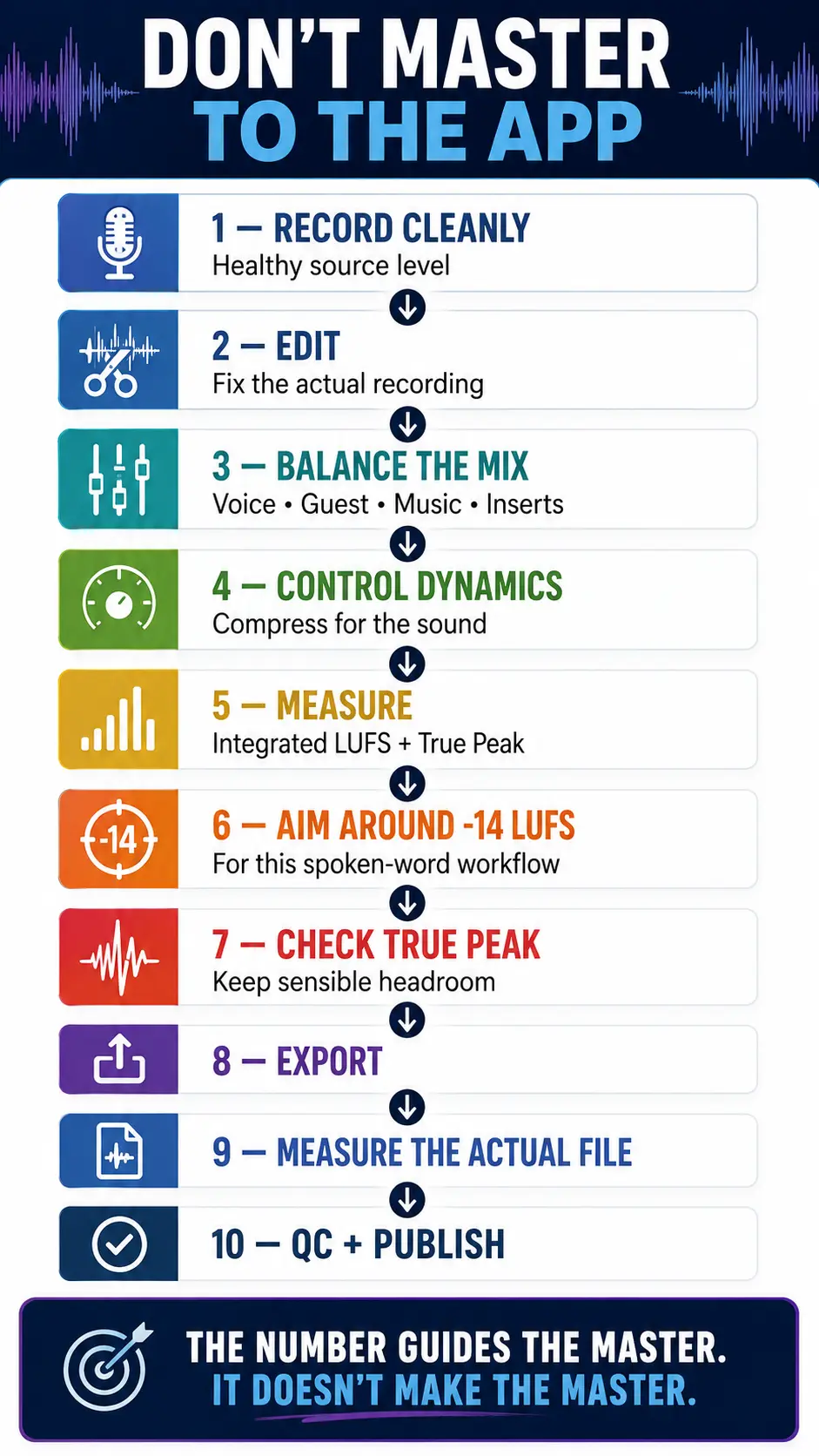
A Simple Podcast Loudness Workflow
The best way to hit a consistent result is to stop treating loudness as something you fix during export.
1. Record a Healthy Source
Get mic placement and recording level right first.
Don’t expect a loudness meter to repair clipping, excessive room sound, inconsistent microphone distance, or a noisy recording.
2. Edit the Episode
Clean obvious problems and get the episode structure finished.
3. Balance the Mix
Make the host, guest, music, intro, ads, inserted segments, and other elements feel like they belong in the same program.
4. Control Dynamics
Use compression because the voice needs control—not merely because you’re chasing -14.
5. Measure the Finished Program
Put a proper loudness meter on the final output and measure Integrated LUFS and True Peak.
6. Move Toward Your House Target
For my spoken-word workflow, that usually means around -14 LUFS Integrated.
If it sounds crushed before I get there, I stop.
The meter does not get the final vote.
7. Check True Peak
Leave sensible headroom before encoding.
8. Create the Delivery File
Once the master is approved, create the final MP3, AAC, or video delivery version.
Loudness and bitrate are separate decisions. A bigger bitrate does not make the mix louder or better mastered.
If you’re working through that part of the chain, see my guide to podcast MP3 bitrate and compression.
9. QC the Actual Export
Measure the file you are actually going to upload.
This is especially useful with cloud editing systems because their export processing can differ from what you heard while editing.
10. Make the Process Repeatable
Document the target and put it into your production checklist.
Mix → dynamics → loudness → true peak → encode → final QC → publish
That’s much more reliable than rediscovering the loudness debate every time you finish an episode.
The same idea applies to the rest of your podcast production workflow.
Loudness Is Only One Link in the Audio Chain
Loudness, bit depth, sample rate, bitrate, microphone technique, dynamics, editing, encoding, and quality control are related, but they do different jobs.
A clean workflow keeps those decisions in the right order.
Record well.
Preserve quality through production.
Master the finished program for the way it should sound.
Encode it for delivery at the end.
That is much easier to manage than collecting random “best settings” from five platforms and hoping they somehow turn into one production process.
The Real Podcast Loudness Standard Is Consistency
I don’t think podcasters need another rigid number presented as universal truth.
They need a reliable production target and the judgment to know when the number is helping or hurting the sound.
For my spoken-word work, that target is usually around -14 LUFS Integrated.
Apple’s -16 recommendation is useful context.
Spotify’s -14 normalization system is useful context.
YouTube’s Stable Volume behavior is useful context.
Broadcast’s -24 and -23 targets are useful context.
None of those numbers gets to mix the episode for me.
The best finished podcast is loud enough that the listener doesn’t have to fight it, controlled enough that it doesn’t become tiring, and consistent enough that every episode feels like it belongs to the same show.
And once you decide what your standard is, put it into the system.
If you’re tired of rebuilding your podcast process from a collection of individual settings, templates, software choices, and production decisions, the Podcast Business System + Podcast Production OS is designed to connect the decisions behind the show with the repeatable production process used to make it.
One master.
One production standard.
Then move on to making the episode worth listening to.
Frequently Asked Questions
Should a podcast be -14 or -16 LUFS?
Both can produce a technically good spoken-word master. Apple recommends approximately -16 LKFS for podcast audio, while I normally use around -14 LUFS Integrated as a practical production target for polished contemporary spoken-word podcasts.
Is -14 LUFS the Spotify podcast standard?
No. Spotify publishes -14 LUFS as part of its music playback-normalization guidance. It should not be presented as an official Spotify podcast mastering requirement.
Does Apple Podcasts turn -14 LUFS podcasts down to -16 LUFS?
Apple recommends that podcast creators precondition audio around -16 LKFS, but its current podcast documentation does not describe a universal system that automatically creates a new -16 LUFS version of every louder RSS podcast.
Does YouTube require -14 LUFS?
YouTube’s official creator upload settings do not publish a mandatory LUFS target. YouTube does use Stable Volume on supported videos to reduce loudness variation during playback.
What LUFS does Riverside export?
Riverside says its optional per-speaker normalization uses -23 LUFS, while every final editor export receives another EBU R128 normalization stage after mixing. Riverside does not state the final target LUFS of that second stage in its current export-quality documentation.
Stop Rebuilding Your Production Standards Every Episode
Getting your loudness target right is one production decision. Your recording settings, editing workflow, mastering targets, publishing process, CTAs, and measurement should work together too.
The Podcast Business System + Podcast Production OS gives you a connected system for deciding how your podcast should operate—and then turning those decisions into a repeatable production workflow.